How to build an agentic company profiling flow in Google Workspace Studio
By the end of this tutorial, you will be able to build a complete, automated company profiling engine inside Google Workspace Studio from scratch. I will show you how to take a simple list of target company names in a spreadsheet and automatically fill each row with revenue, company owners, and contact emails—completely free inside your existing Google environment.
Replacing expensive data tools with AI
It is no longer necessary to pay for expensive third-party data providers or spend hours manually searching the internet. Because AI and Gemini with Google Search can find a lot of public information directly from the web, you can easily automate this entire research process inside Google Workspace Studio for free.
The breakthrough: Automated research inside Google Workspace Studio
Instead of writing complex web scraper scripts or managing API keys, Google Workspace Studio gives us a visual workspace where AI models pull live information directly from the web.
Google Workspace Studio has quickly become my go-to platform for daily automations. By combining standard Google Sheets actions with an “Ask Gemini” step connected to live web search, we can create smart, repeating workflows.
The flow reads target companies from your sheet, tells Gemini to search the internet for specific details, and writes the organized results back to your sheet in real time. What if you could break through those walls of manual data entry without writing a single line of code?
Understanding the architecture
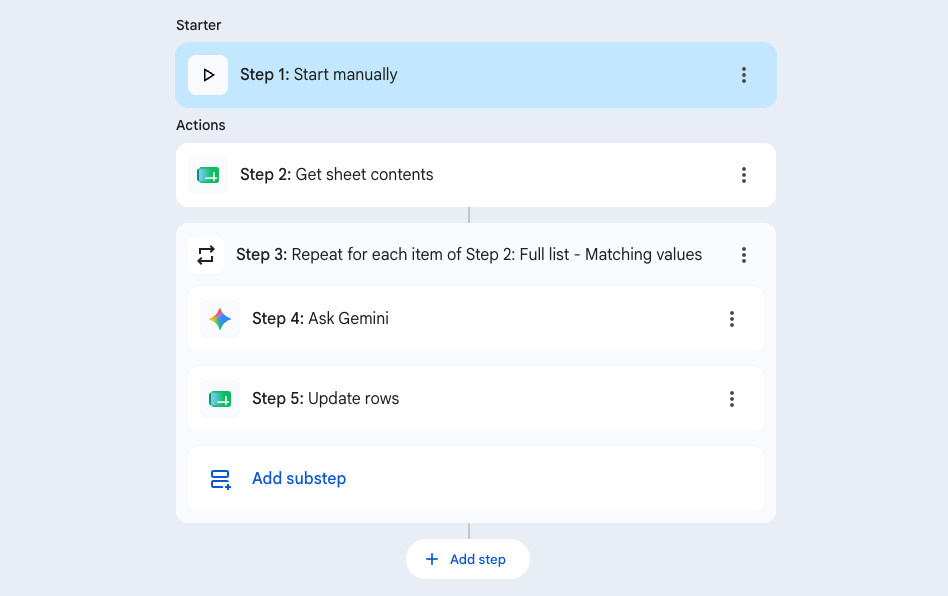
This automated company analysis pipeline uses a clean sequence starting with data setup and followed by 5 automated Studio steps:
- Step 0 (Data Setup): Create the Google Sheet. Sets up a Google Sheet (
Company profiling) containing at least one requiredCompanycolumn next to the columns you want to fill. - Step 1 (Starter): Start manually. Starts the flow whenever you want from Studio or via Workspace commands when your team adds new target companies.
- Step 2 (Action): Get sheet contents. Connects directly to your spreadsheet and reads the rows where your target company names are listed.
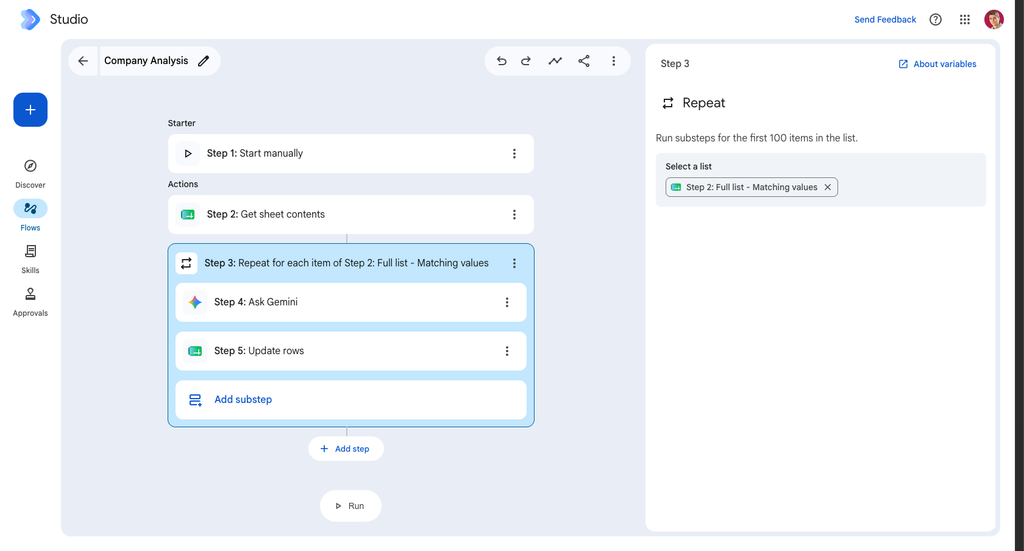
- Step 3 (Action): Repeat for each item. Loops through the list of companies one by one so the next steps run for every single row.
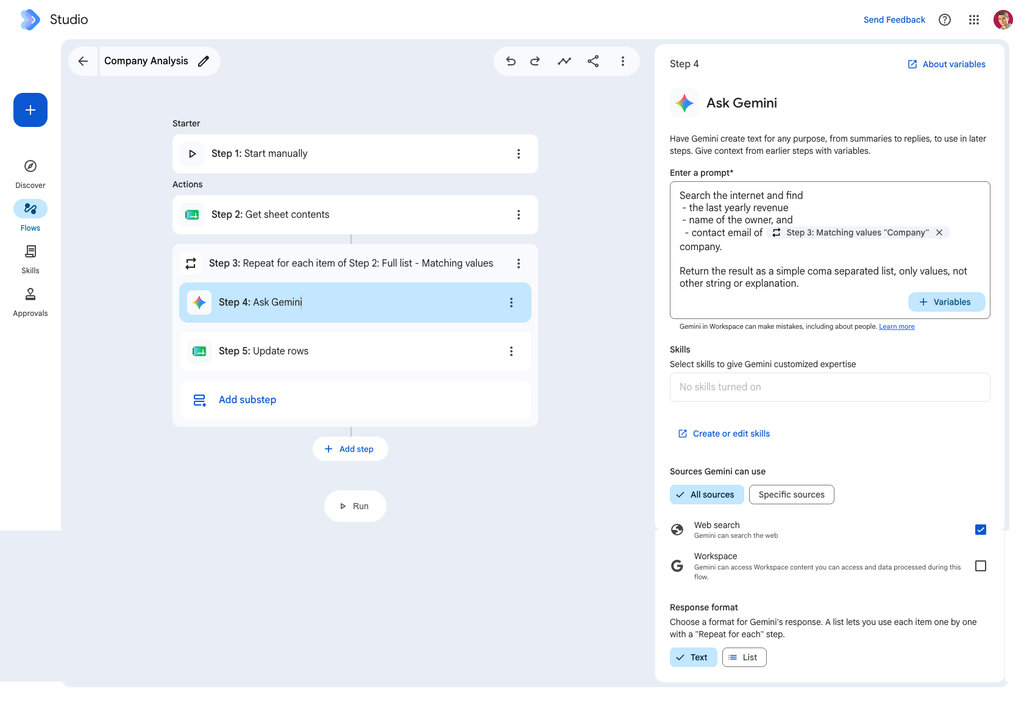
- Step 4 (Substep): Ask Gemini. Uses Gemini with Web search turned on to find revenue, owner names, and contact emails for the current company. Use your own prompt but I sued the following in this demo. Don’t forget to include the proper dynamic variable, company name into the prompt.
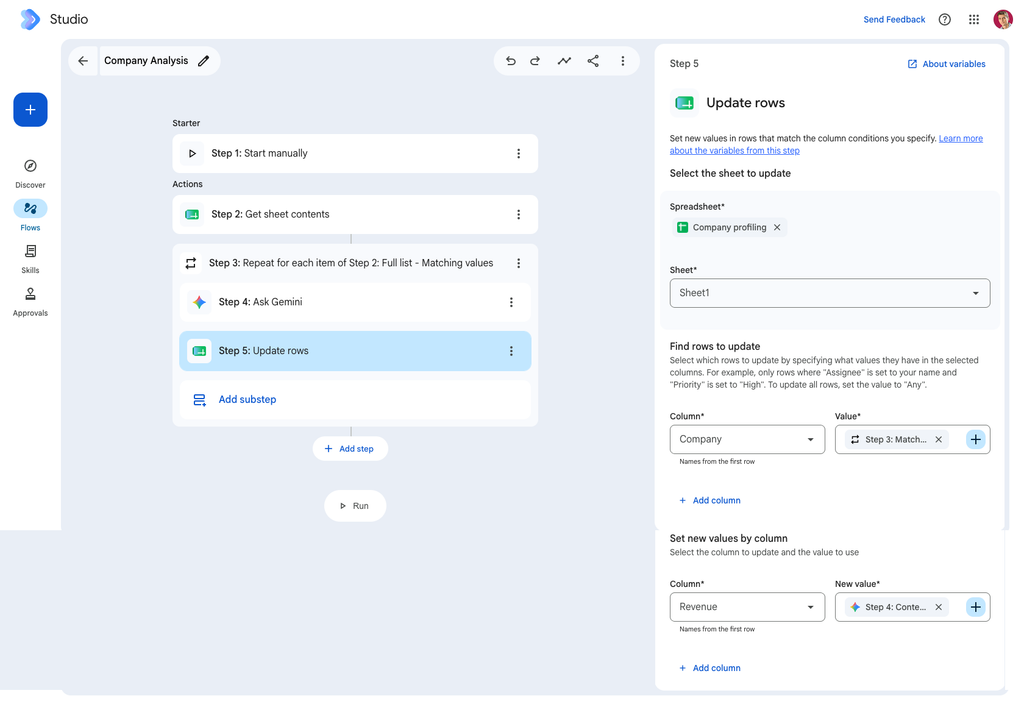
- Step 5 (Substep): Update rows. Writes the information Gemini found back into the matching row of your spreadsheet. Pay attention to define which row result should be overwritten by setting the “Find rows to update” option, and with what data.
Step-by-step guide: Building the company profiling flow
Setting this up takes only a few minutes. Follow these steps to connect your sheet to Workspace Studio.
Step 0: Prepare your Google Sheet
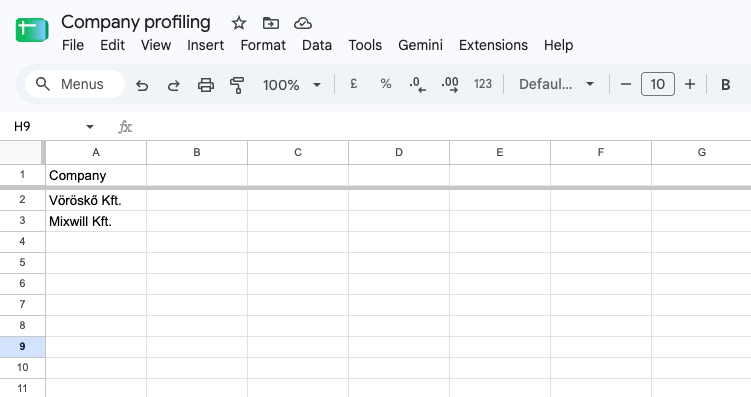
Before opening Studio, create a new Google Sheet named Company profiling:
- In the first row of
Sheet1, create a required header column namedCompany. - Add columns next to it for the company details you want Gemini to find, such as
Revenue,Owner, andEmail. - Fill the
Companycolumn with your list of target company names.
Step 1: Set up the manual start
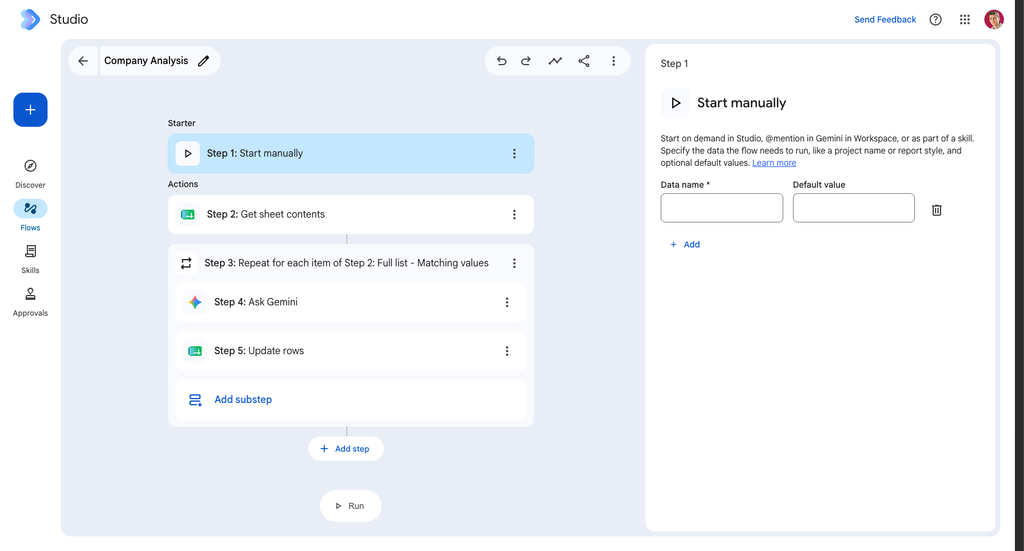
Open Google Workspace Studio and create a new flow named Company Analysis:
- Select Step 1 (Start manually) as your starting point.
- Keep the default settings so your sales team can run the flow anytime a new list of companies is ready.
Step 2: Connect and read sheet rows
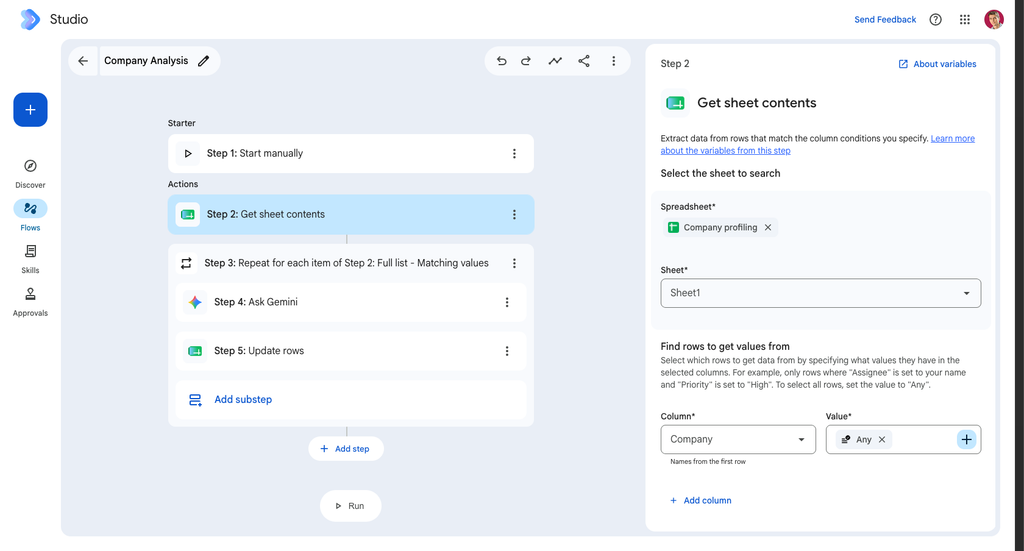
Add Step 2 (Get sheet contents) to bring your company list into the workflow:
- Select your Spreadsheet (
Company profiling) and target Sheet (Sheet1). - Under Find rows to get values from, set the filter for
CompanytoAny. This makes sure the step reads every company listed in your sheet.
Step 3: Set up the “Repeat for each” loop
Next, create the loop that checks each company one by one:
- Add Step 3 (Repeat).
- In the Select a list field, choose the dynamic variable
Step 2: Full list - Matching values. - Studio automatically opens slots inside the loop that will run in order for every company row.
Step 4: Ask Gemini with web search
Inside the repeat loop, add Step 4 (Ask Gemini):
- Enter a prompt: Place the company variable from Step 3 directly into your instructions:
“Search the internet and find the last yearly revenue, name of the owner, and contact email ofStep 3: Matching values "Company"company. Return the result as a simple comma-separated list, only values, no other string or explanation.” - Sources Gemini can use: Turn on Web search. This allows Gemini to check live public websites instead of relying only on old training data.
- Response format: Select Text.
Step 5: Save results back to Google Sheets
Finish the loop by adding Step 5 (Update rows) right below the Gemini step:
- Select the same spreadsheet (
Company profiling) and tab (Sheet1). - Find rows to update: Match the row where column
Companyequals the current company variable:Step 3: Matching values "Company". - Set new values by column: Connect your target columns (such as
Revenue,Owner, andEmail) to the output generated byStep 4: Content.
Once connected, click Run. Studio goes through your rows, searches the live web, and fills your spreadsheet automatically.
The business proof: Cutting research time by 80%
I recently built this exact setup for an outbound sales team that was spending too much time qualifying new leads.
Before using this workflow, a sales rep spent 8 to 12 minutes per company searching for leadership names, yearly revenue, and contact emails. For a list of 100 companies, that took almost two full working days of manual searching.
By letting Workspace Studio handle company profiling in the background, the team saved over 15 hours per rep each week. Sales reps stopped doing manual data entry and focused on talking to customers, while managers got clean, organized company data in their spreadsheets without paying for expensive data credits.
The expert view: Native Studio flows vs. paid data tools
A common question I hear is: “Why not just buy a dedicated data tool like ZoomInfo, Apollo, or Clay?”
While those platforms offer large databases, they come with high monthly prices, strict user limits, and fixed data formats.
I prefer native Workspace Studio flows for three simple reasons:
- No extra software needed: Your sales team already works in Google Workspace. Building inside Studio avoids another login and keeps everything in one place.
- Live, up-to-date web search: Paid databases often contain outdated information. Because Gemini searches the live web when the flow runs, it finds recent leadership changes and current financial details.
- Easy to expand: Workspace Studio lets you connect this research flow directly to other steps—like drafting custom emails in Gmail or creating a summary document in Google Drive—inside the exact same workspace.
Automating company research no longer requires a big budget or complex coding. By starting with a simple spreadsheet and letting Gemini do the hard work in Google Workspace Studio, you turn static lists into active research tools in minutes.

About the Author
Attila
I am a AI Operations & Automation Architect with 15+ years of experience building practical solutions on Google Workspace to supercharge your productivity. Let me transform your raw data into a decisive competitive advantage and automate your workflows, all within the platform your team already knows.
